Tools2 min read
Gemini can now create, preview and edit documents, PDFs and spreadsheets inside your chat
Google has added a full document editor inside the Gemini app, so you can generate, preview and edit PDFs, Google Docs, spreadsheets, slide decks and more without leaving your chat. The feature is live now for all users in every language where Gemini is available.
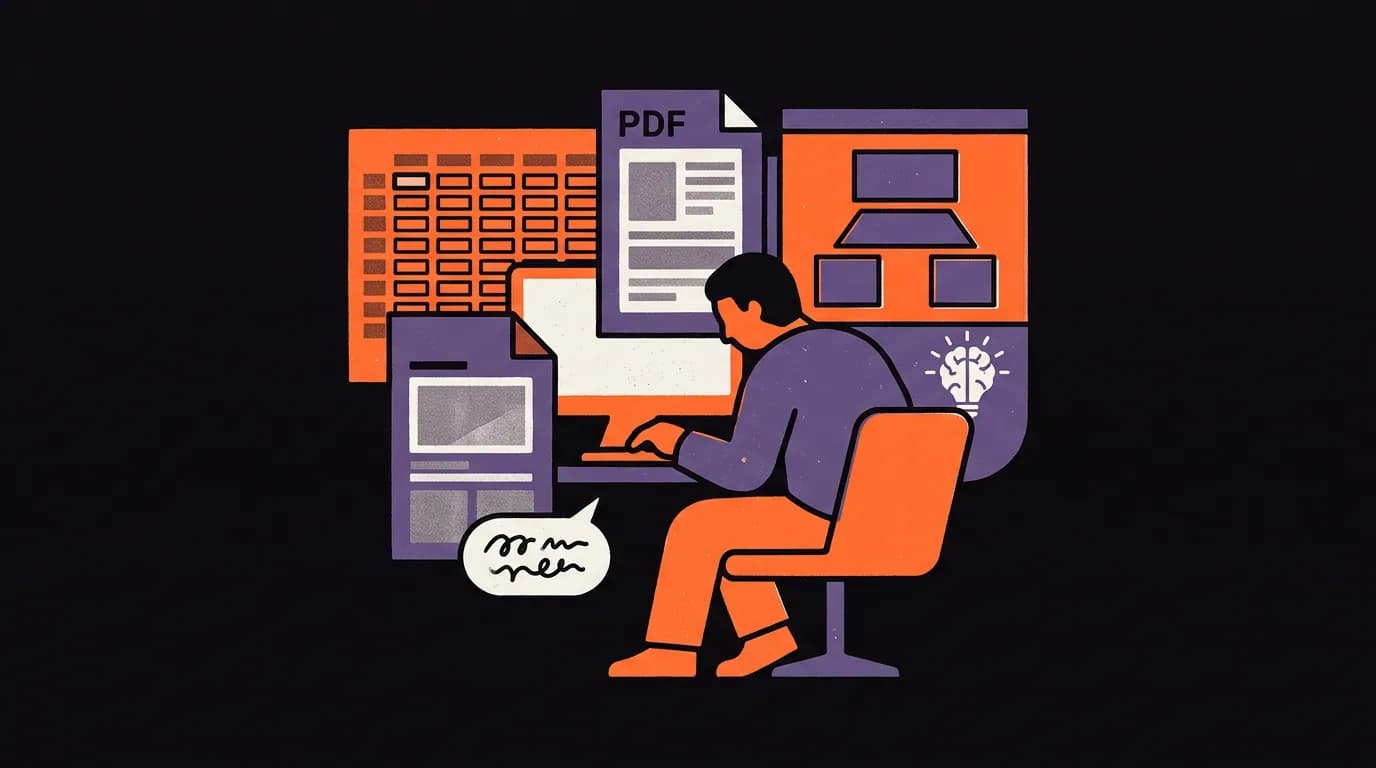
Google added a built-in document editor to the Gemini app on 29 October, letting you create, preview and edit files without leaving your chat. PDFs, Google Docs, Google Sheets, slide decks, Markdown files, plain text files and code are all supported.
What happened
Until now, Gemini could write content for you, but you had to copy it somewhere else to see and edit the finished file. That step is gone. You can now generate a file, see a full preview inside the chat, expand to a full-screen editor to type changes directly, or highlight a section and ask Gemini to refine it. You can also ask questions about the content while you are looking at it.
Google's own example: upload a photo of handwritten lecture notes, ask Gemini to turn them into a PDF study guide, then highlight sections to request edits to the text or visuals, all inside the same chat window.
What it means for your work
- PDFs can be generated, previewed and edited on both the web and the Gemini mobile app.
- Google Docs, Google Sheets, slide decks, Markdown files, plain text files and code are supported on the web version only, not on mobile yet.
- You can type edits directly in full-screen mode, or highlight text and ask Gemini to make the changes for you.
- The feature is available to all users in all languages where the Gemini app is offered. No specific paid plan is mentioned as a requirement.
What to do now
- Open the Gemini web app at gemini.google.com.
- Type a prompt asking it to create a document you need, for example a project brief, a one-page summary or a client-facing PDF.
- When the file appears in the chat, click the full-screen option to type edits directly, or highlight a passage and ask Gemini to rewrite it.
- If you want to edit a Google Doc or spreadsheet this way, use the web version for now, as those formats are not yet available on mobile.
If you work with documents and PDFs regularly, this is worth trying today as it removes the copy-paste step between Gemini and your usual file tools.